Enable two-factor authentication (2FA)
Two-factor authentication (2FA) is an extra layer of security for your Plausible Analytics account designed to ensure that you're the only one who can access your account even if your password gets stolen. With 2FA enabled, when you log in to your Plausible account on a new device for the first time, you need both your account password and the verification code that's displayed on your trusted devices.
To enable the 2FA on your Plausible account, you are required to insert the security code provided by your authenticator app. There are numerous third-party authenticator apps available including Ente (Android and iOS), some operating systems offer built-in options and many password managers including Bitwarden also support 2FA functionality.
How to enable 2FA
-
Log in to your Plausible Analytics account and in the top right menu, click on your account name and choose Account Settings to enter your account settings.
-
In the Security section, find “Two-Factor Authentication (2FA)” and click on the “Enable 2FA” button.
-
Link your Plausible account to your authenticator app by scanning the QR code or pasting the code manually. Then click on the “Proceed” button.
-
Enter the verification code from your authenticator application and click on the “Verify” button.
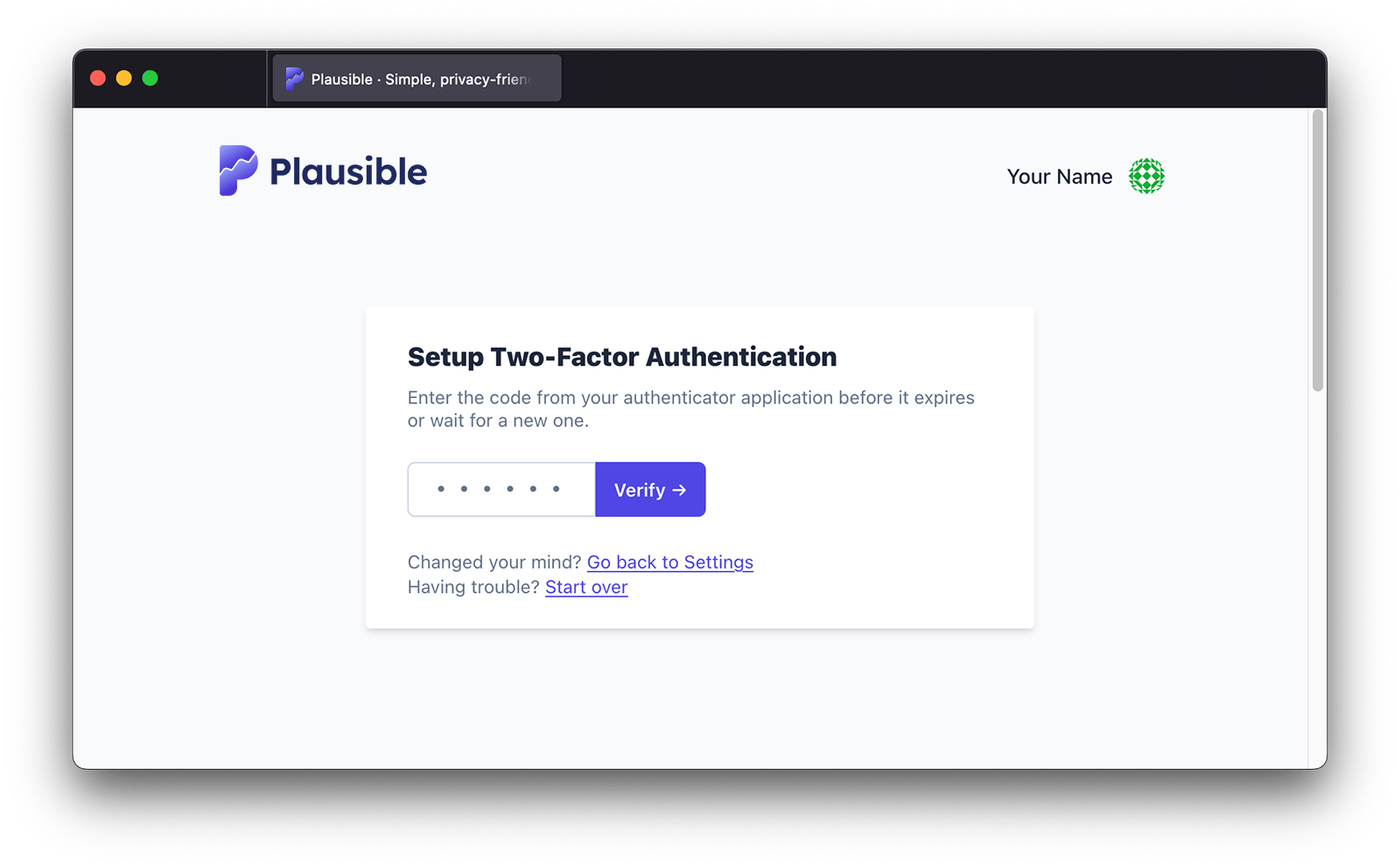
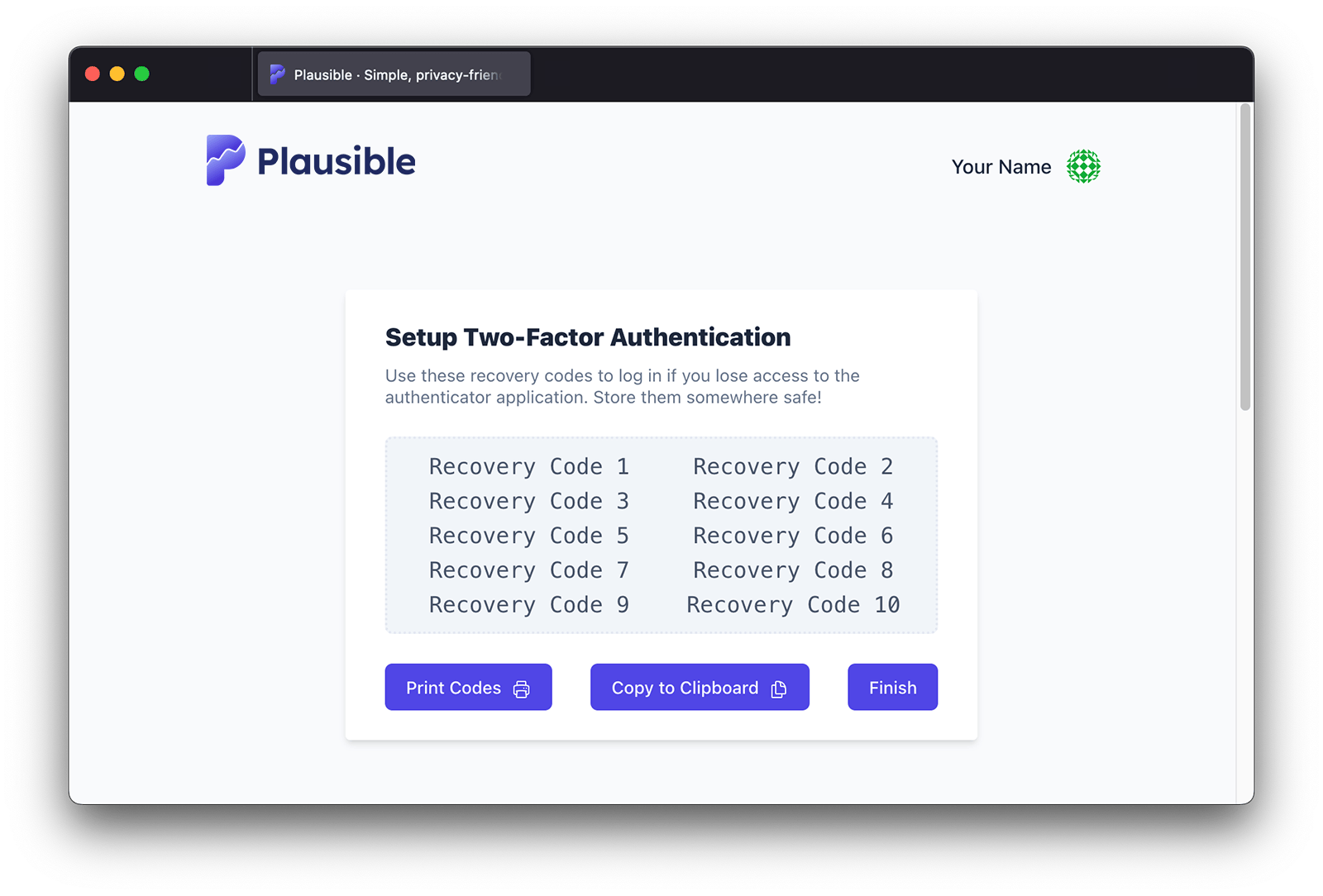
- Store the recovery codes somewhere safe. You can log in to your Plausible account with a recovery code if you lose access to your authenticator application or your trusted device. Then click on the “Finish” button to complete the 2FA setup.
Require all team members to enable 2FA
To improve your account security, you can require all your team members to enable two-factor authentication (2FA):
- First, set up a team if you haven’t already. Here’s how to create one.
- In the top-right menu, click your account name, select the team you want to manage, then open Team Settings.
- In the General section of Team Settings, you’ll find the Force Two-Factor Authentication (2FA) option.
- Click Enforce 2FA to make it mandatory for all team members.
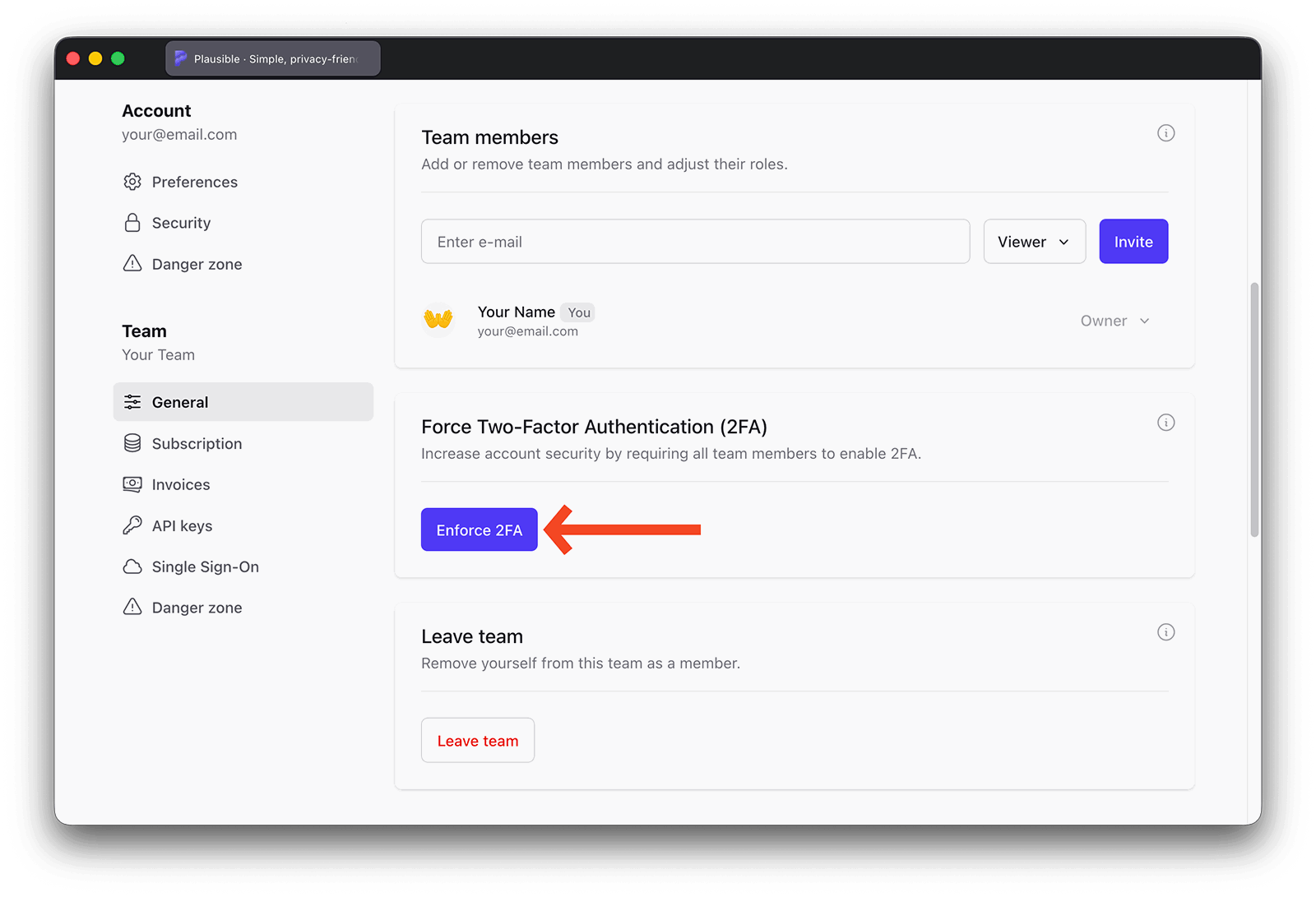
- Confirm by clicking OK. All members, including you, will need to set up 2FA before they can access the team sites.
- To remove the requirement later, click Stop Forcing 2FA.
How to generate new recovery codes
Have you lost your recovery codes? You can generate new codes at any time. You can use a recovery code to log in to your Plausible account if you lose access to your authenticator app or your trusted device.
- In your Plausible account settings Security section, find “Two-Factor Authentication (2FA)” and click the “Generate new” link.
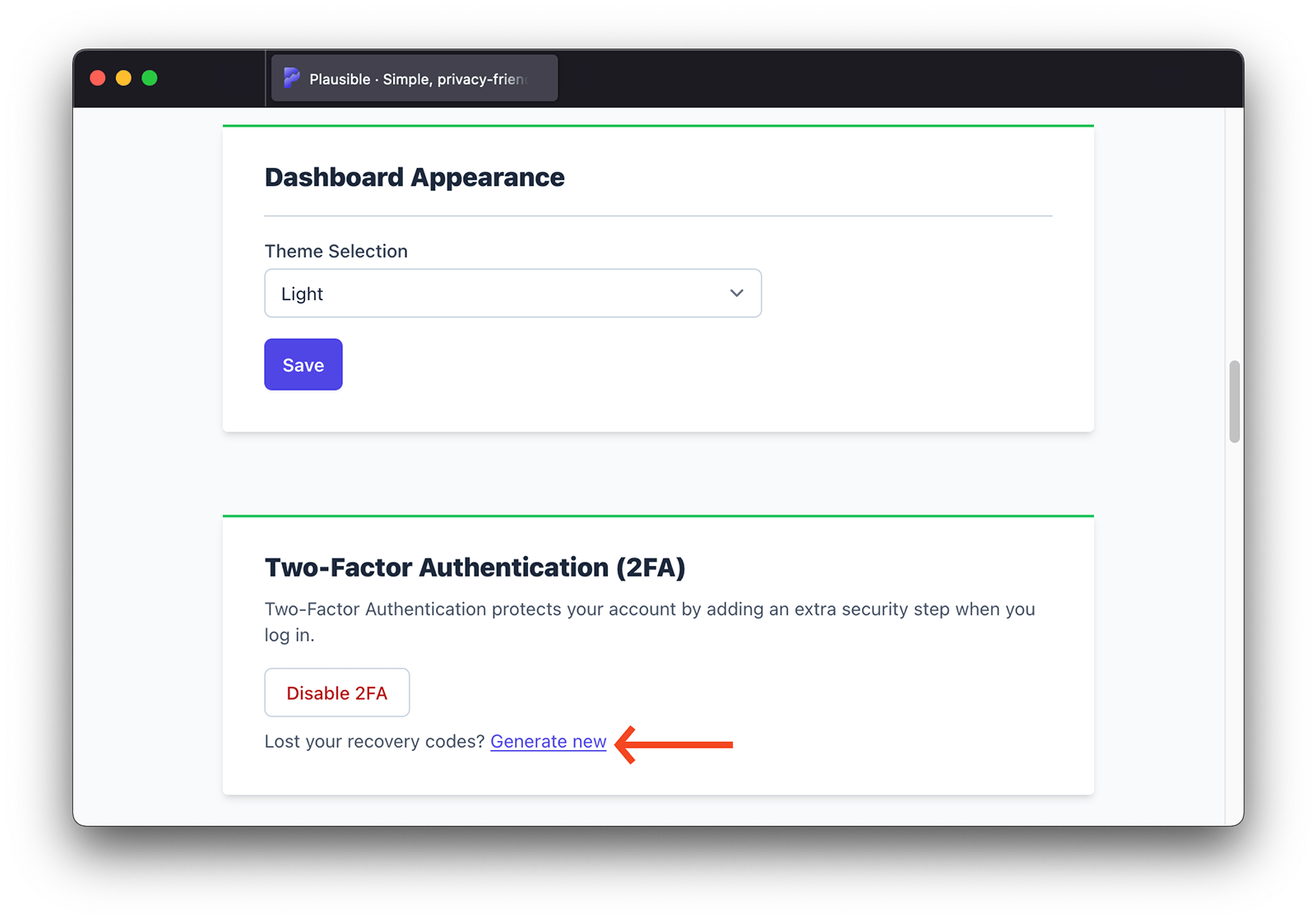
- Confirm your account password and click the “Generate New Codes” button.
- Store your new recovery codes somewhere safe and click the “Finish” button to complete the process.
Note that when you generate new recovery codes, your old recovery codes will become invalid.
How to disable 2FA
- In your Plausible account settings Security section, find “Two-Factor Authentication (2FA)” and click on the “Disable 2FA” button (also visible in the screenshot above).
- Then enter your account password and click the “Disable 2FA” button to complete the process.
Note that once you turn off the 2FA, verification codes from the authenticator application and saved recovery codes will become invalid.
Lost or stolen trusted device?
If you lose your trusted device or otherwise can’t get codes from your authenticator app, you can use recovery codes you previously saved to sign in to your Plausible account. Each recovery code works once.
If you've lost both your trusted device and your recovery codes, contact us from the email address you use to log in. Once we've confirmed the account is yours, we can turn off 2FA so you can log in with your password and set it up again.
Plausible Analytics also offers a security feature that allows you to remotely log out of your account on other devices via your account settings. Here's how.